
Your fitness.
The field guide.
Know the screen. Find the control. Take your next step. Explore the app’s everyday tasks with clear instructions and illustrated examples.
Android testing build 1.4.82 · Updated October 13, 2026
No topics found
Try a shorter word, such as workout, food, or account.
Get started
Fitness Pace is currently in Android testing. Use the build and installation instructions supplied to you as a tester. This website explains the app; it does not sign you in or install it.
- Create an account or sign in. Use email and a password, or the Google option when available. A new email password needs at least 10 characters. Account creation requires the age confirmation (13+) and agreement to the app’s Terms and Privacy Policy.
- Set up your training profile. Follow the setup questions about your goals, experience, session length, available equipment, and optional movement considerations. Use information that reflects what you can do today. Choose your weekly training days later in Workouts.
- Review your starting plan. Check the suggested training and nutrition targets before using them. You can revisit your profile and settings as your circumstances change.
- Take the in-app tour. The walkthrough points out controls inside the actual panels. Use Back, Next, or Skip. You can replay it from Help later.
- Start small. Open Workouts, choose a suitable session, review its exercises, and start when you are ready.
PACE is optional. You can use saved workouts and movement tracking without enabling it. Buddy discovery has a separate 18+ verification requirement.
Find your way around
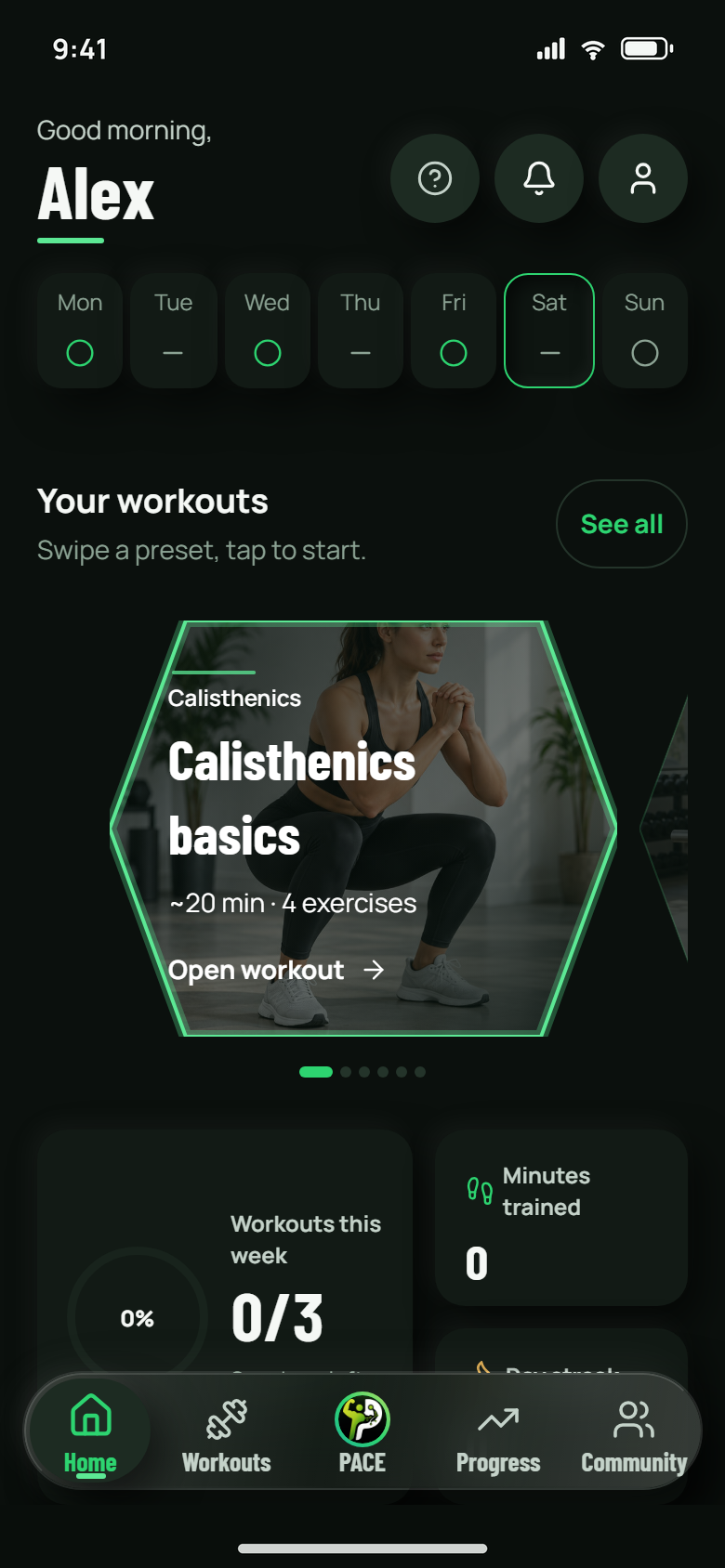
Home brings your workout choices and daily entry points together. The bottom bar takes you to the five main areas.
App preview · demo dataThe five bottom tabs keep the main parts of your day close by.
- Home
- Your daily overview, swipeable workout cards, food diary, and movement entry points. With motion on, a card curves as it leaves the center. The centered card stays flat.
- Workouts
- Session choices, your weekly plan, favorites, and workout history.
- PACE
- Chat with your fitness companion and return to saved conversations.
- Progress
- Review activity and log weight, measurements, or progress photos.
- Community
- Read the Feed, connect in Friends, and explore Challenges.
The top gear opens Settings; the avatar opens Profile. Use Profile to update training preferences and personal details. In the PACE menu, open Help → Replay the app tour to revisit the eight-stop walkthrough. The tour explains the current screen without sending a message, recording movement, or saving a workout for you.
Workouts & favorites
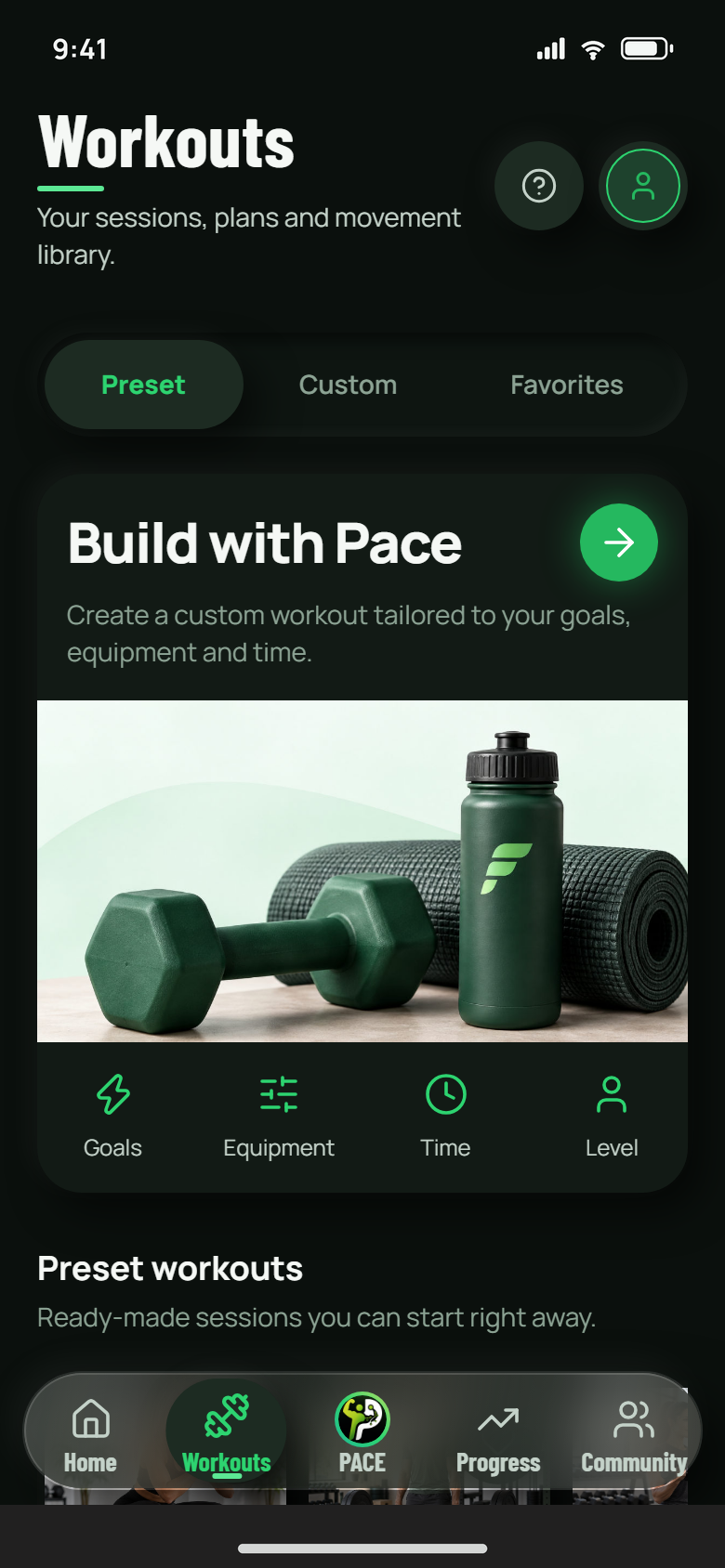
Open a preset, make a custom session, or revisit a favorite. Review the workout before you begin recording sets.
App preview · demo dataChoose a ready-made session, build your own, or pick up a workout you saved before.
Choose a preset
- Open Workouts → Sessions → Preset.
- Browse Calisthenics basics, Strength foundations, Muscle building, Cardio circuit, Core control, or Mobility flow.
- Open a session in Build Your Workout and review or edit its name, exercises, equipment, sets, and reps. Use an exercise’s demo when you need a visual reference.
- Choose Start Workout. Enter your reps or timed duration and optional load, then choose Log set. Rest or use Skip rest, and record only what you actually complete. If you log a set by mistake, use Undo last set before completing the session.
- Add notes or effort when useful, then choose Complete workout. Review the saved session.
Make a workout your own
Choose Custom to create or edit a workout. Add exercises and set the intended work. Save Workout keeps it for later; Start Workout starts a session; Save & use today saves it and sets it as today’s workout.
Keep favorites and look back
Tap a workout’s heart to add or remove it from your favorites. Favorites brings preset and saved favorites together. In Weekly plan → Your training days, tap weekdays to switch them between training and rest. Use History for completed sessions.
Saving a routine and finishing a session are different actions. Your history should reflect completed training, rather than a workout you only opened or saved.
Your PACE companion
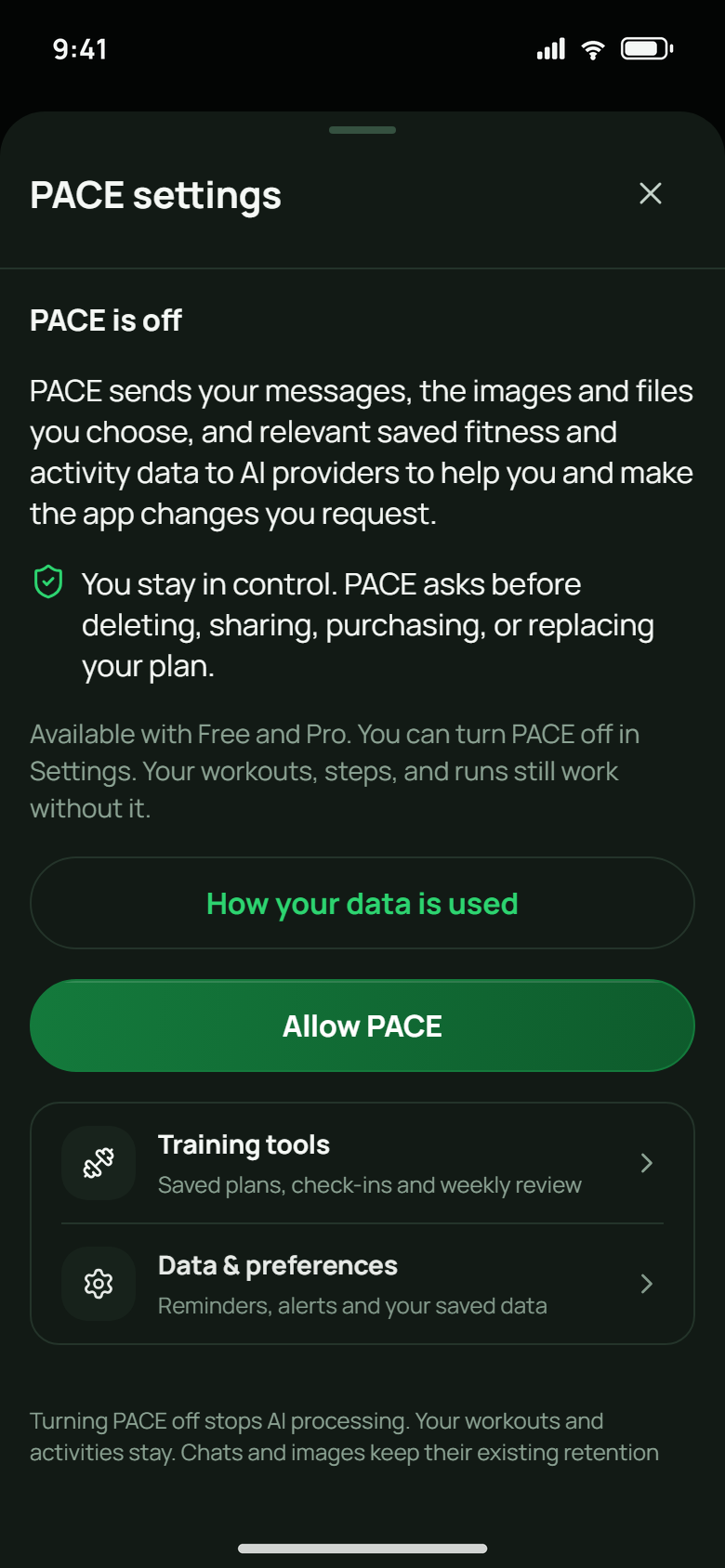
Read how PACE uses the information you choose to share. Your workouts and activity tracking can still be used without enabling PACE.
App preview · demo dataPACE means Personal Adaptive Coaching Engine. Ask for an explanation, a workout idea, a meal suggestion, or help understanding your recorded progress.
- Open the PACE tab. Review the chat disclosure and choose whether to allow AI processing.
- Choose a starter or write your own question. Starters fill an editable draft; check it before sending.
- Give useful context: your time, equipment, goal, and what you want to change. For example: “Build a 20-minute bodyweight workout for today.”
- Send and review the response. Use the conversation list to return to earlier chats. A conversation can receive a short title from your first message. Check your in-app usage display if a request reaches a limit.
Photos, titles, and history
Photos you send stay with that chat and in Library. In the conversation list, select the chats you want and choose Delete selected. You can select every matching chat. A reply that has not finished stays until it finishes.
Photos, voice, and saved information
Camera and upload controls let you choose an image when that feature is available. Review the image and any disclosure before sending. Dictation uses your device’s speech input where supported; review the transcript just as you would a typed draft.
Chat processing can send your message, selected images or files, and relevant saved fitness or activity information to the configured AI providers. Enable only the permissions you want PACE to have.
Review changes to your account
With the relevant permissions, PACE can carry out supported routine changes you request. Deletion, sharing, purchases, account settings, and replacing a whole plan require asking first. Read the proposed action and confirmation before approving it, and check the result afterward.
Pause or turn off PACE
Open the PACE settings to manage access and turn PACE off. Turning it off stops new processing; it does not delete existing conversations or images. Manage uploaded images in the Library and use the relevant deletion controls for content you want removed.
Availability and limits depend on the account and testing configuration. Use what the app shows for your account. AI replies and photo estimates can be wrong; review them before making changes.
Food diary
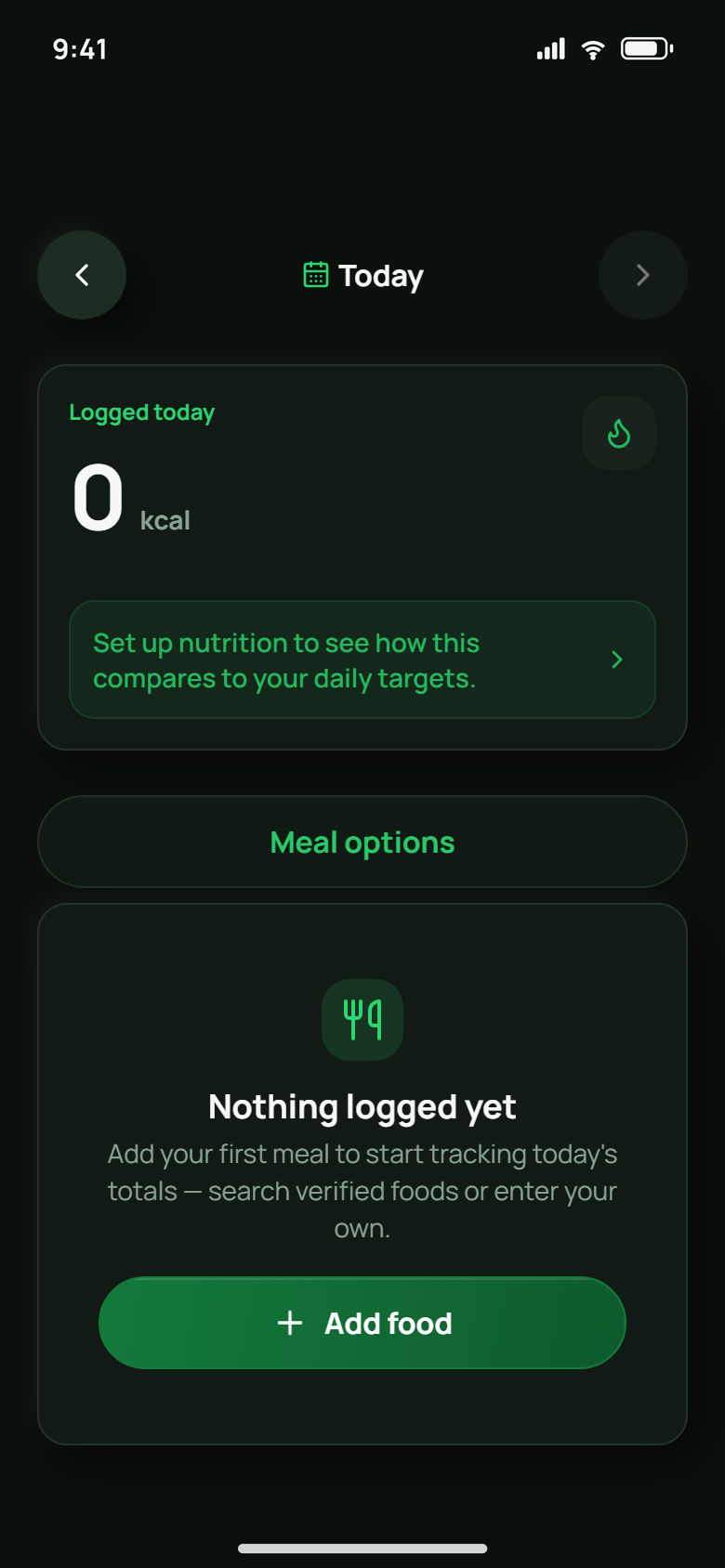
Use Add food to record what you ate. Set up nutrition to compare your daily totals with your chosen targets.
App preview · demo dataLog what you eat and compare the day’s intake with your current targets.
- Choose Log food on Home, or Set up nutrition first if prompted. In the Food diary, choose Add food.
- Choose Search for a food result, Manual for values you enter, or Photo for an estimate when available.
- Select the meal slot. Check the food, serving units, quantity, calories, and macros.
- For Search or Manual, choose Add to diary. For Photo, use Take photo or Choose photo, review or Refine estimate, then choose Add AI estimate to diary. Use Enter nutrients myself for the manual fallback.
- Open an entry to correct or remove it when the food or portion changes.
A food photo is an estimate, not a nutrition label. Portions, ingredients, and cooking methods can change the result. Review the estimate before adding it.
Track your progress
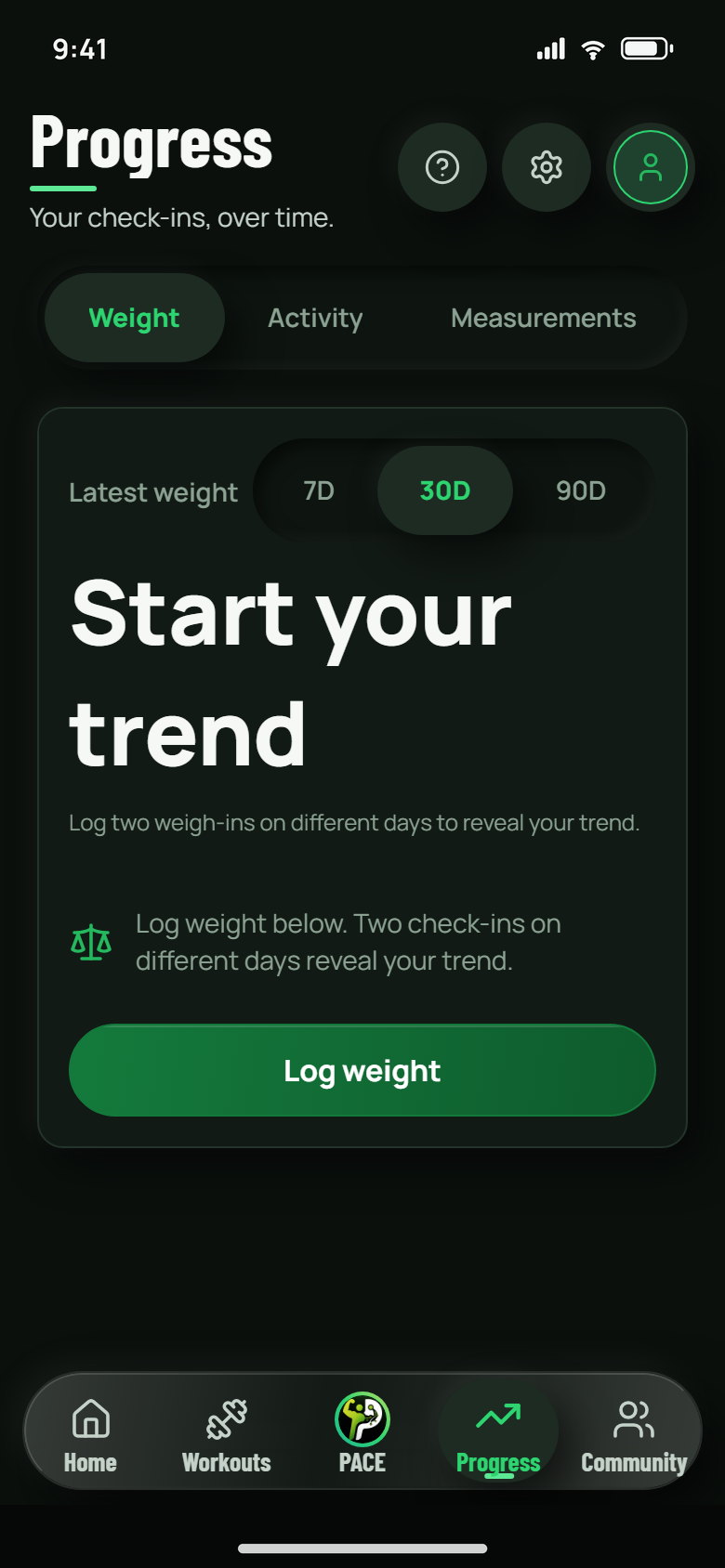
Start with real check-ins. Weight, activity and measurement views help you return to the records you have actually saved.
App preview · demo dataUse Progress to see the records you have actually logged, rather than expecting every result from one workout.
- Weight: add an entry, check its date and unit, then use the available 7D, 30D, and 90D ranges to view your trend.
- Measurements: use the measurement guides to keep your measuring method consistent.
- Photos: open Measurements → Add progress photo → Enable private photos, then choose Take photo or Library. Photos start private. Review the privacy control before choosing selected people or other Fitness Pace account holders as an audience, then save.
- Activity: review completed sessions and the available training summaries alongside your own notes.
If a view is empty, start by adding a relevant record. Check the selected date range and units before assuming a record is missing.
Steps, walks & runs
Daily movement
Open Home’s movement area to see your step count and goal. Follow the setup instructions for the available device source, including activity or Health Connect permissions when requested. Counts depend on your device and permissions.
Record a walk or run
- On Home, choose Start run (or Resume run for an unfinished recording), then choose Run or Walk.
- Choose Start run or Start walk. Review the requested location access and wait for usable GPS readings when recording a route.
- Watch distance, active time, and pace. Use Pause and Resume when needed.
- Choose Finish, review the summary and available splits, then choose Save activity.
- For an optional share, choose Share stats, review the prepared text, and use Open share sheet. The shared stats exclude your route and starting location.
Interrupted recordings stay on the phone until you resume or finish them. GPS recording requires a supported mobile build; the web view can show saved activities. Your saved route has a private preview. Opening the interactive map requests map tiles from a provider. Step calories are a rough estimate based on steps, stride, and weight; check the method shown in the app.
GPS and background recording depend on phone permissions and battery settings. Watch or Health Connect setup varies by device; follow the in-app guide for the supported source.
Community & Friends
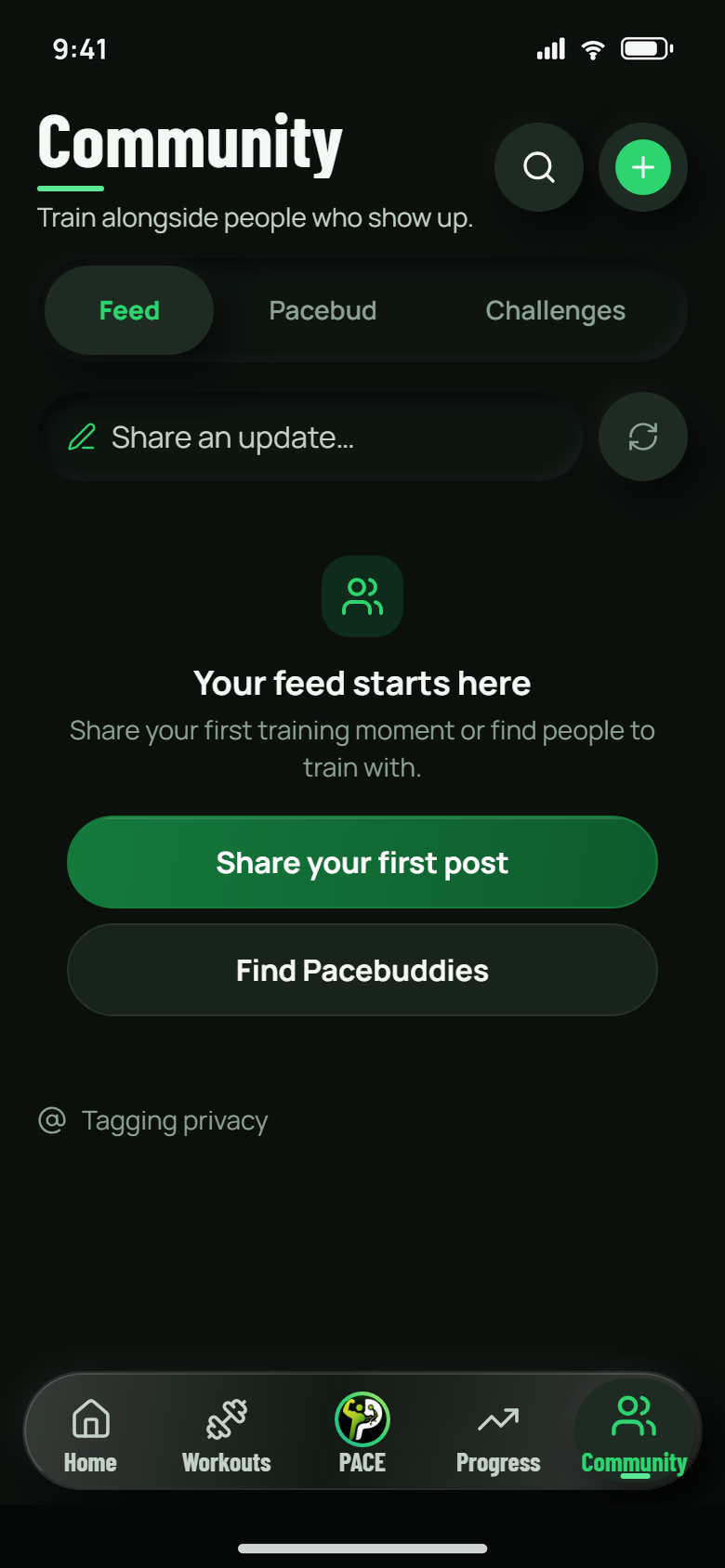
Share an update with the audience you choose, or explore Challenges and Friends. This capture still labels the middle tab Pacebud. The current app calls it Friends.
App preview · demo dataOpen Community. Its sections are Feed, Friends, and Challenges.
Share on your terms
In Feed, choose the plus control, write an update or share a supported workout or milestone, and review any photo. Choose the audience, then Post to Community. A private progress record does not become a community post unless you choose to share it.
Find a training partner
- Open Friends.
- Complete the separate 18+ age verification and ID review when required. Creating a 13+ app account does not unlock friend discovery.
- Choose Find friends and set the discovery details available to you, including training preferences, location, and schedule.
- Review a profile and choose Add friend. Incoming and sent requests stay in Friends. Once connected, use chat or Train Together.
Use the available block and report controls if an interaction is unwanted. Share only the information you are comfortable making visible to the selected audience.
Settings & privacy
- Appearance: choose Light, Dark, or System in the app’s appearance settings.
- Motion: choose Full, Reduced, or Off. Reduced motion keeps information and controls available with less movement.
- PACE access: review permissions and optional memory or media features, or turn PACE off.
- Help: revisit the app’s explanations or replay the walkthrough.
- Account deletion: open Settings → Delete account. Read the confirmation before choosing Delete everything; this action is irreversible.
For the full account-deletion process, including the email request route, read Delete your account. For data handling and service providers, read the Privacy Policy.
Turning off a permission, signing out, and deleting an account have different effects. Use the specific content or account deletion control when removal is what you want.
When something gets stuck
PACE will not send or says I reached a limit
Check that PACE is enabled and the required chat consent is allowed. Check your connection and the in-app usage display. If the app shows a retry or reset time, follow it; repeatedly sending the same request will not increase the allowance.
My steps or route are missing
Check activity and location permissions, the selected step source, and device battery restrictions. A route needs usable GPS readings. Open the movement setup or watch guide for your device before starting a new recording.
I cannot find a workout or progress entry
Check Preset, Custom, or Favorites and the selected progress range. A saved workout is not a completed session. Return to History for completed workouts and check the date and units of a progress entry.
I need to change or remove an uploaded image
Use the relevant image or Library controls. Turning PACE off stops new processing but does not remove images already stored. Read the privacy and account-deletion pages for the broader removal options.
I need more help or want to report a bug
Use in-app Help or email support. Include the app version, phone model, what you tried, and the message you saw. Leave passwords and private photos out of a bug report.
Ready for another session? Go to the workout steps, or explore Fitness Pace.